

What did Slack ship in July and August?
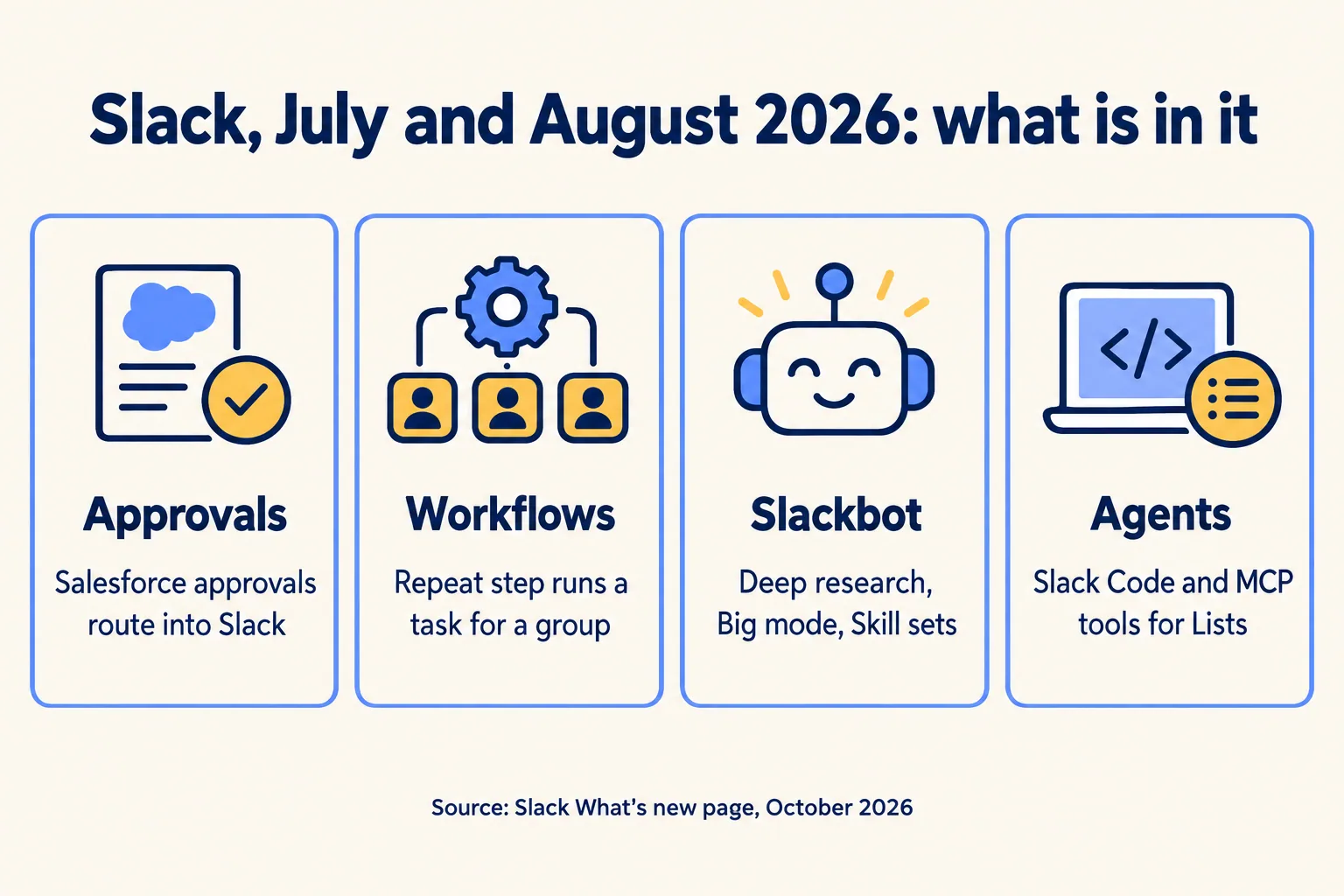
If an approval in your business still lives in WhatsApp, email or Excel, one of Slack's July and August changes is for you: Salesforce approvals in Slack. Slack lists twenty changes on its What's new page. This is the one to act on this month. The rest matter less to an operations lead, and the ones worth knowing are covered below.
It has conditions: Enterprise, Unlimited or Developer edition with Flow Approval Processes or Advanced Approvals, and the approval has to run through Salesforce. If it lives in email today, the first job is to move that one approval into Salesforce, and that is the real first step, not the Slack part. For our own approvals, working out the process took days and building it took about a day each, as set out below. Yours will differ. That is the job we take on: our Slack work sets up Slack with Salesforce so that decisions made in Slack are written back to the record.
Two cautions before the list. First, almost every description below is Slack's own wording from that page. We have not tested these features in a workspace, so we say "Slack says" where that is all we have. Second, Slack's page says some updates appear gradually depending on your subscription, region or admin settings, and some need admin permission. Check each one in your own workspace before you plan around it.
Why should approvals come first?
Because an approval is a decision with a name on it, and the new route keeps the name. Slack lists "Salesforce approvals in Slack" for August: approvals "routed straight into Slack", powered by Salesforce flow orchestration, so approvers see insights from both Slack and Salesforce in one place.
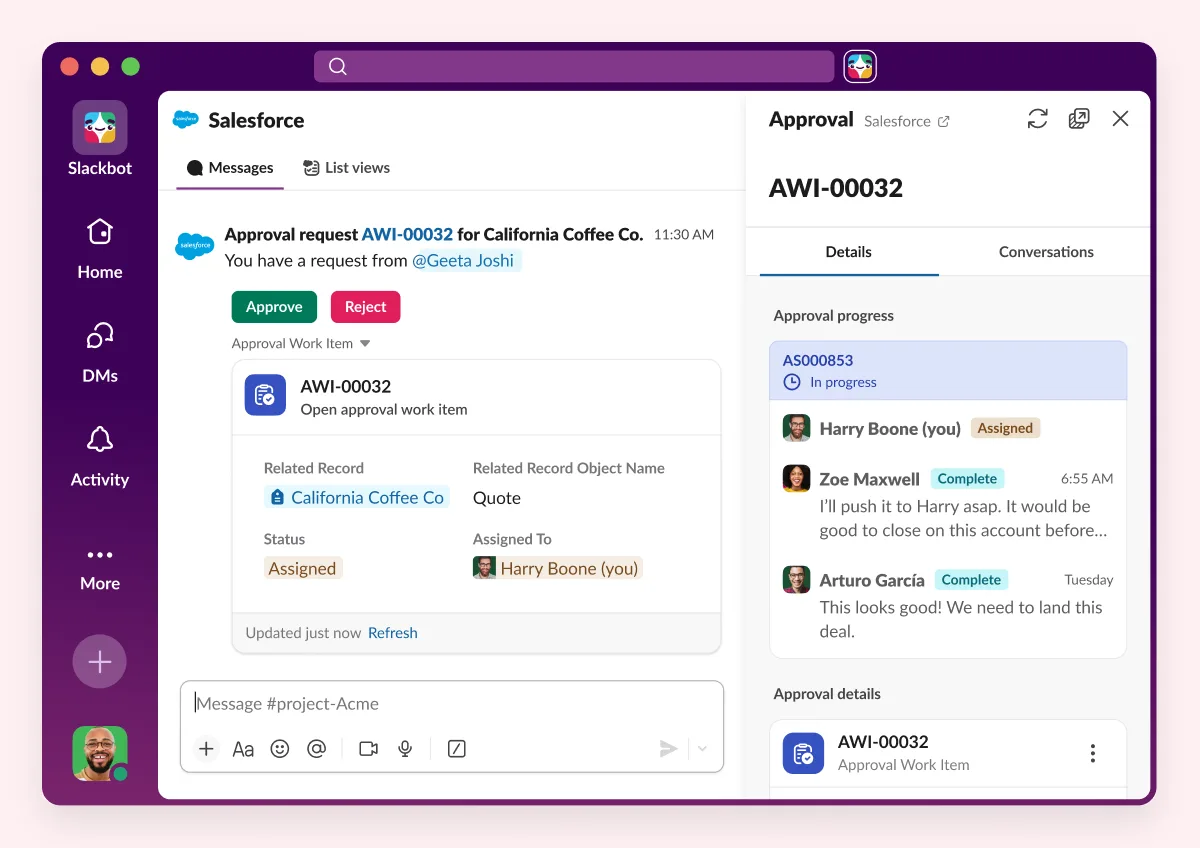
Salesforce's release notes say what it takes. Reviewers can approve or reject requests and add comments in Slack, and submitters get notifications when a request is submitted and reviewed. The Approval Trace component on the related record keeps the status and history. It applies to Lightning Experience in Enterprise, Unlimited and Developer editions with Advanced Approvals or Flow Approval Processes.
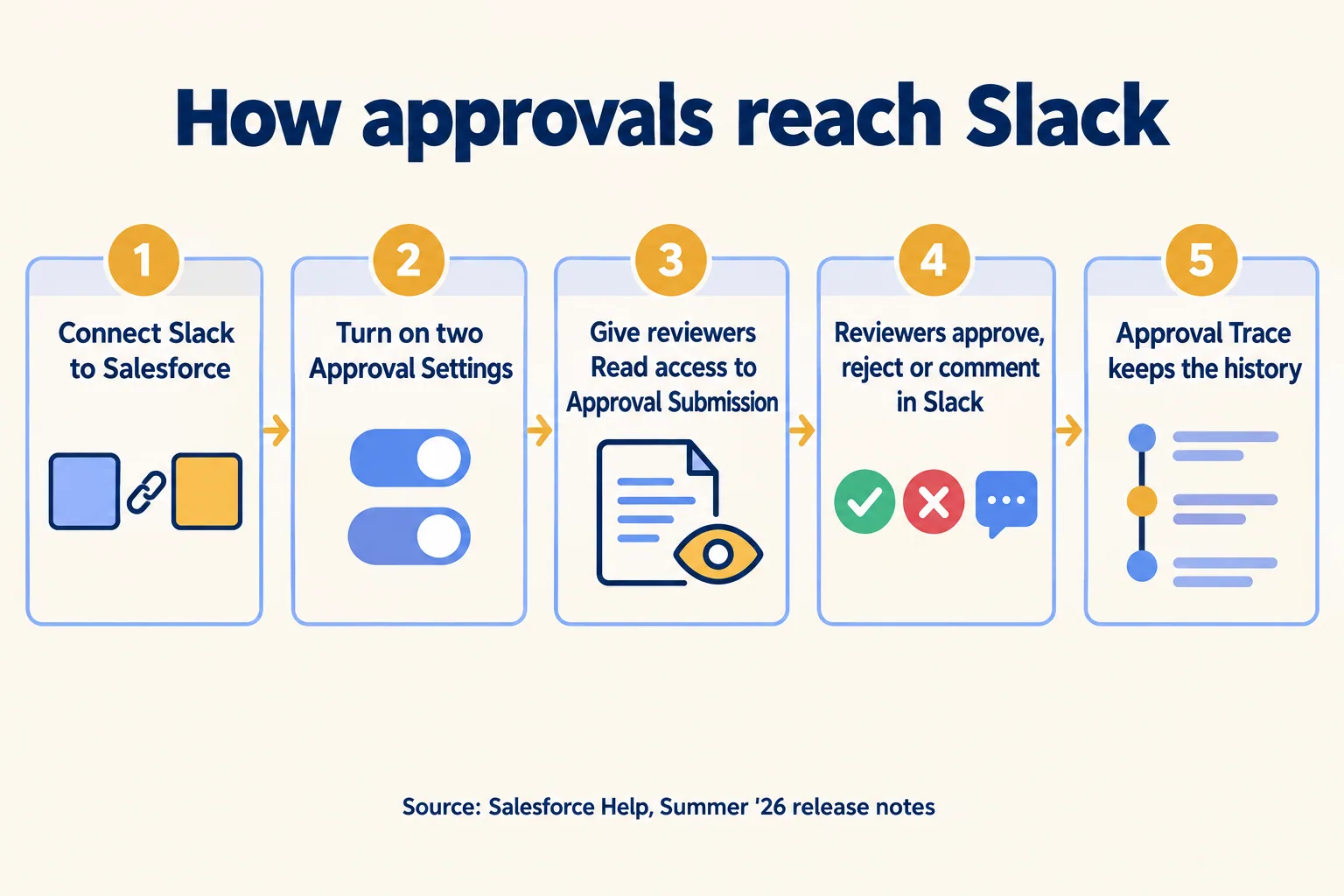
Three questions the release notes do not answer, so put them to Salesforce or Slack before you plan: whether an approver outside your company, such as a partner or vendor, needs a Slack seat to act; how it behaves for your region and data setup (for UAE or India workspaces we confirm per plan before you sign, and we have not checked); and what happens if some of your approvers sit in Microsoft Teams. Our Slack work never starts from replacing Teams: if you run it, keep it. Then check which kind of approval you run. Salesforce's help for Classic Approval Processes in Slack lists limits: the only actions are Approve and Reject, users can respond only without comments, a notification shows up to four fields, the Slack app connects to one Salesforce org, and an approver who must pick the next approver has to finish in Salesforce. It also says that enabling it turns it on for all users, and recommends Flow Approval Processes as the more flexible route. The belief to break: "approvals are in Slack now" is one sentence, but four fields and no comments is a different process from approve, reject and comment with a trace. The receipt is Salesforce's own page.
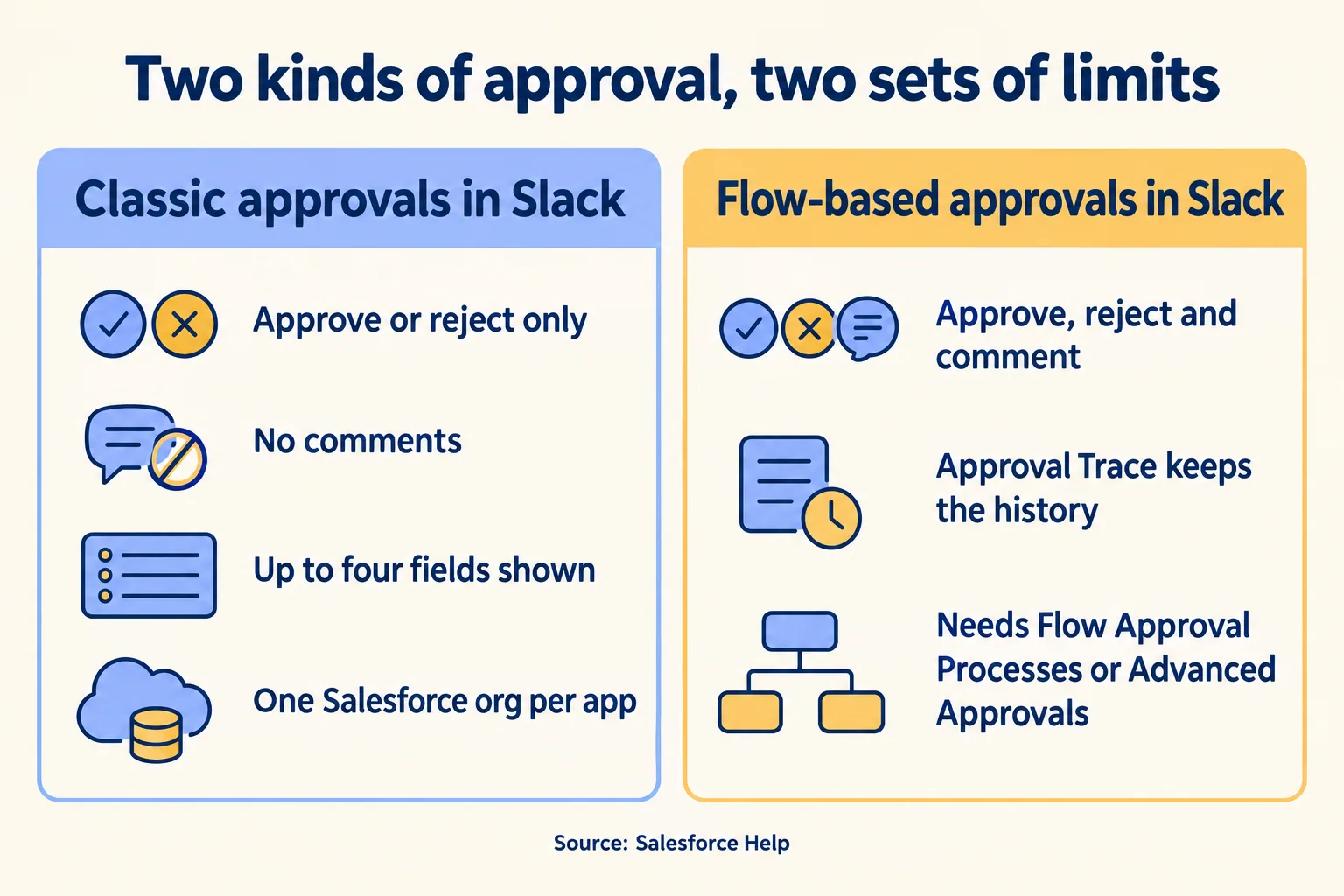
So choose the four fields an approver needs before you switch it on. For a discount, that might be the account, the list price, the discount and the margin. Everything else stays on the record, one tap away.
What does the Repeat step change?
It removes the copy-and-paste build. In Workflow Builder, Slack says business users and ops teams can now build object collections of users, channels or text, filter and select items from a List, and run any step across a whole collection or user group with the new Repeat step. Slack's examples: one message to a list of channels, or the same onboarding steps for every new employee in a group. Slack also lists a radio button field, private-channel support for Summarise Channels and shorter delay options.
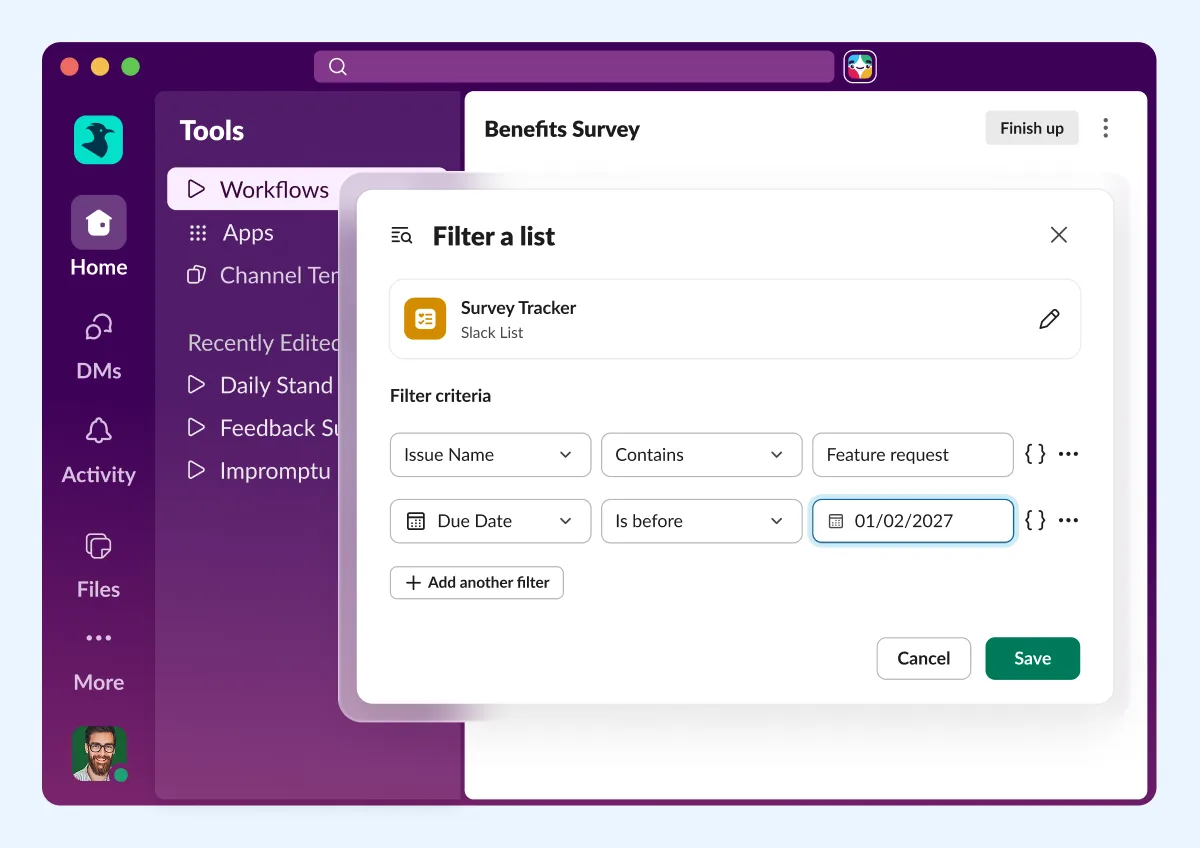
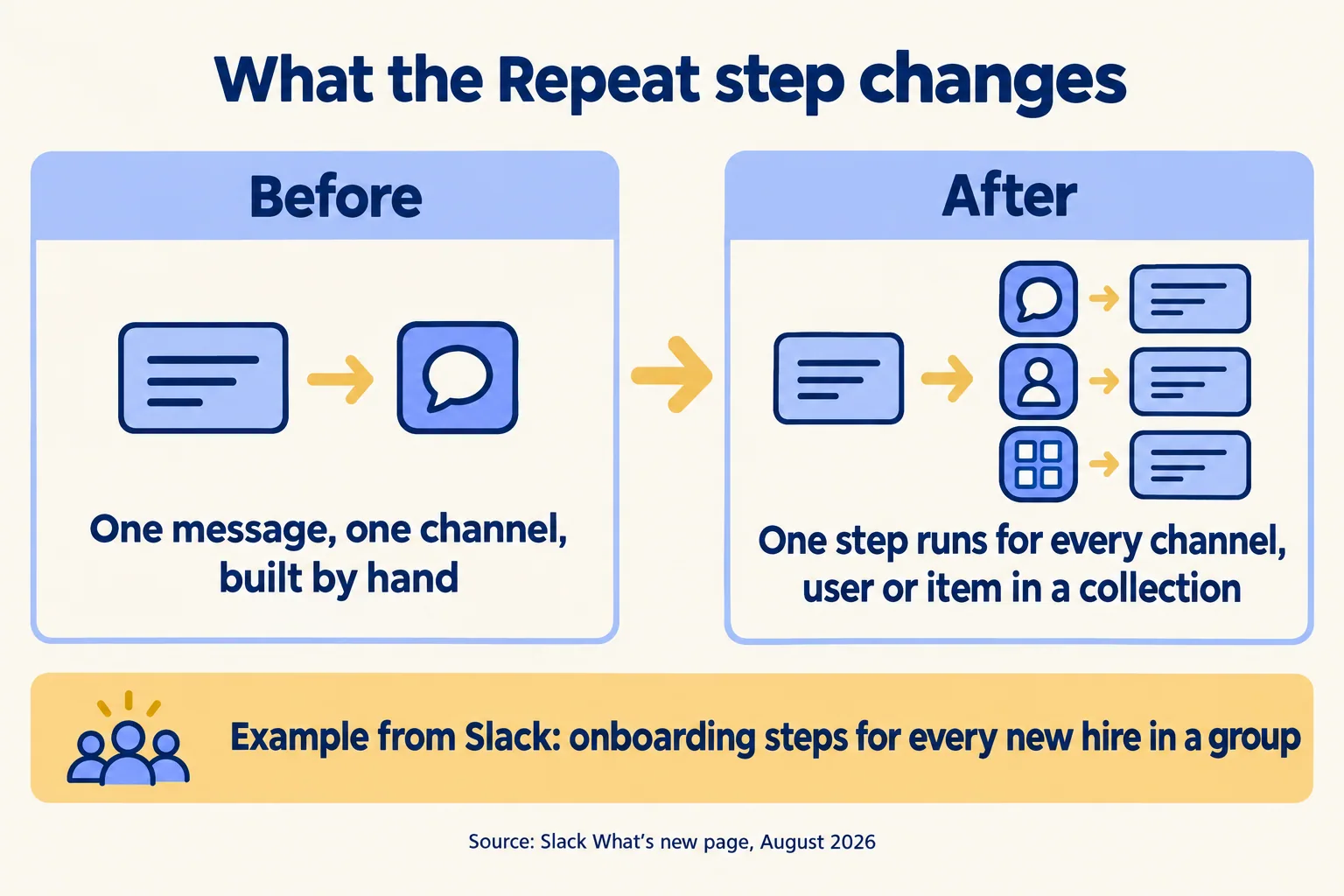
For an operations lead the use is plain. A weekly reminder to every owner of an open approval, or a handoff checklist for each new partner, no longer needs one workflow per person.
What do the Slackbot changes add?
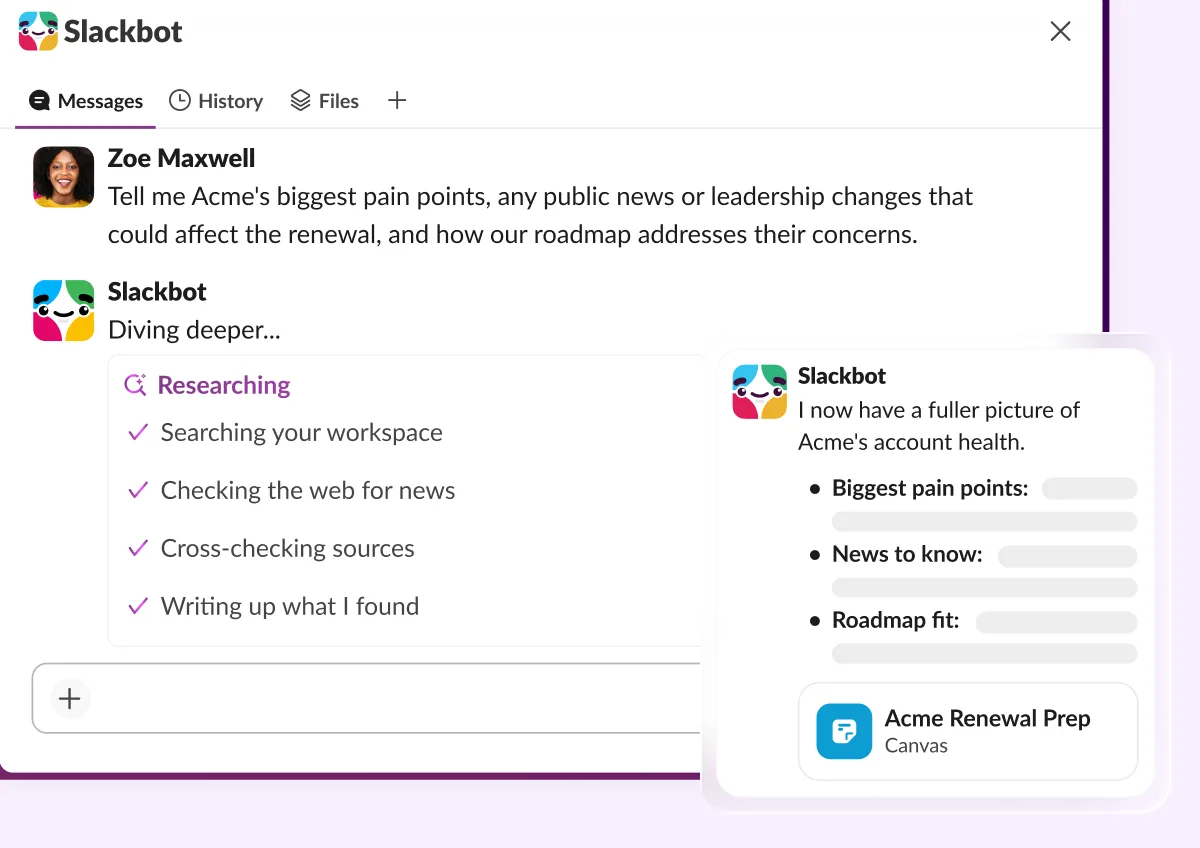
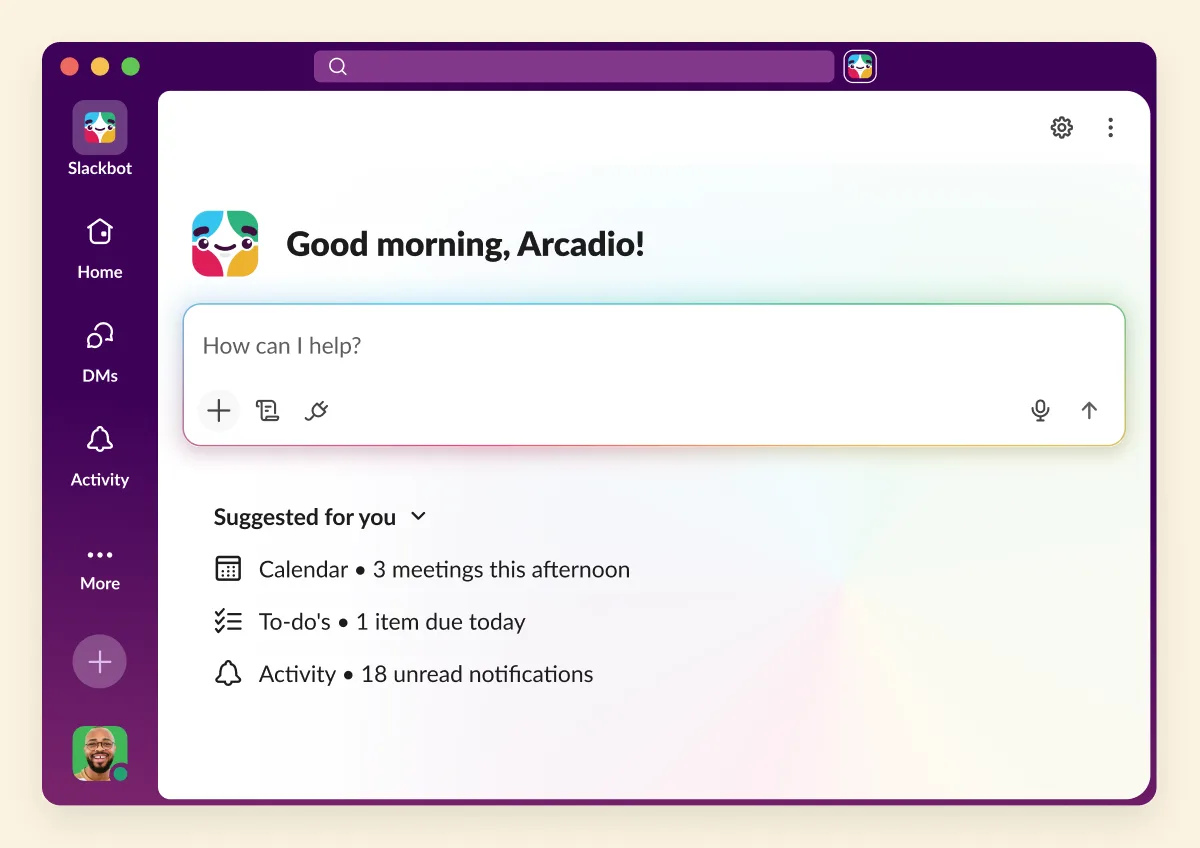
Three things, all described by Slack and none tested by us. Deep research: Slack says Slackbot can dig across your org's data and the web on open-ended questions and reason through what it finds. Big mode: a full-screen home for Slackbot, built for longer research, writing, analysis and file generation. Skill sets: Slack says related skills can be bundled and deployed as one package.
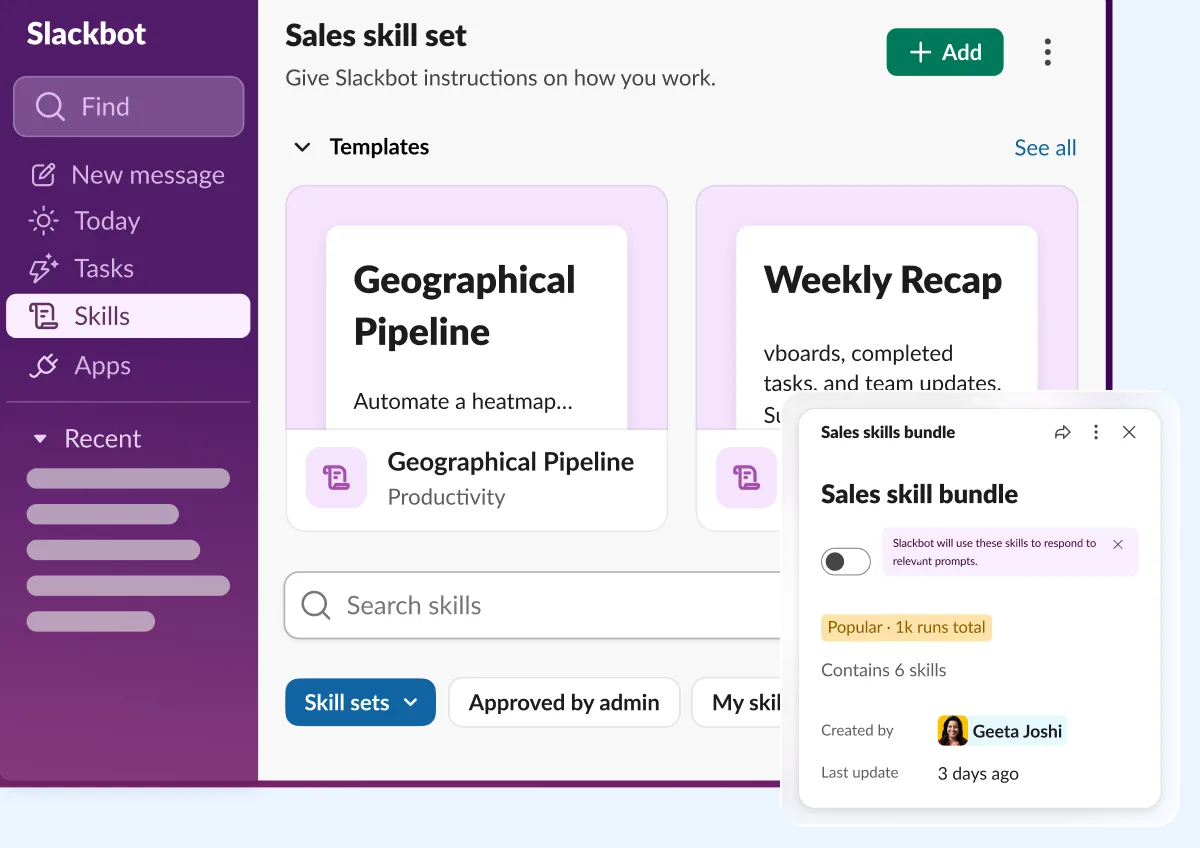
Skill sets are the one to watch, because they are where a team writes down how it works. A skill is an instruction, and a bundle is a set of them. Whoever owns the bundle owns how Slackbot behaves for the team. Before you deploy one, write down who edits it, who approves a change to it, and who can switch it off.
What is for engineers and agents?
Two items. Slack Code: Slack says coding agents can work with the whole team in dedicated code channels, where everyone can see the conversation, code diffs and live previews. You tag in a coding agent from a conversation, and it creates a channel to build, review and launch together. And MCP tools for Slack Lists: Slack says agents connected through its MCP server can search, create and update Lists, adding records and pulling full lists into their work.
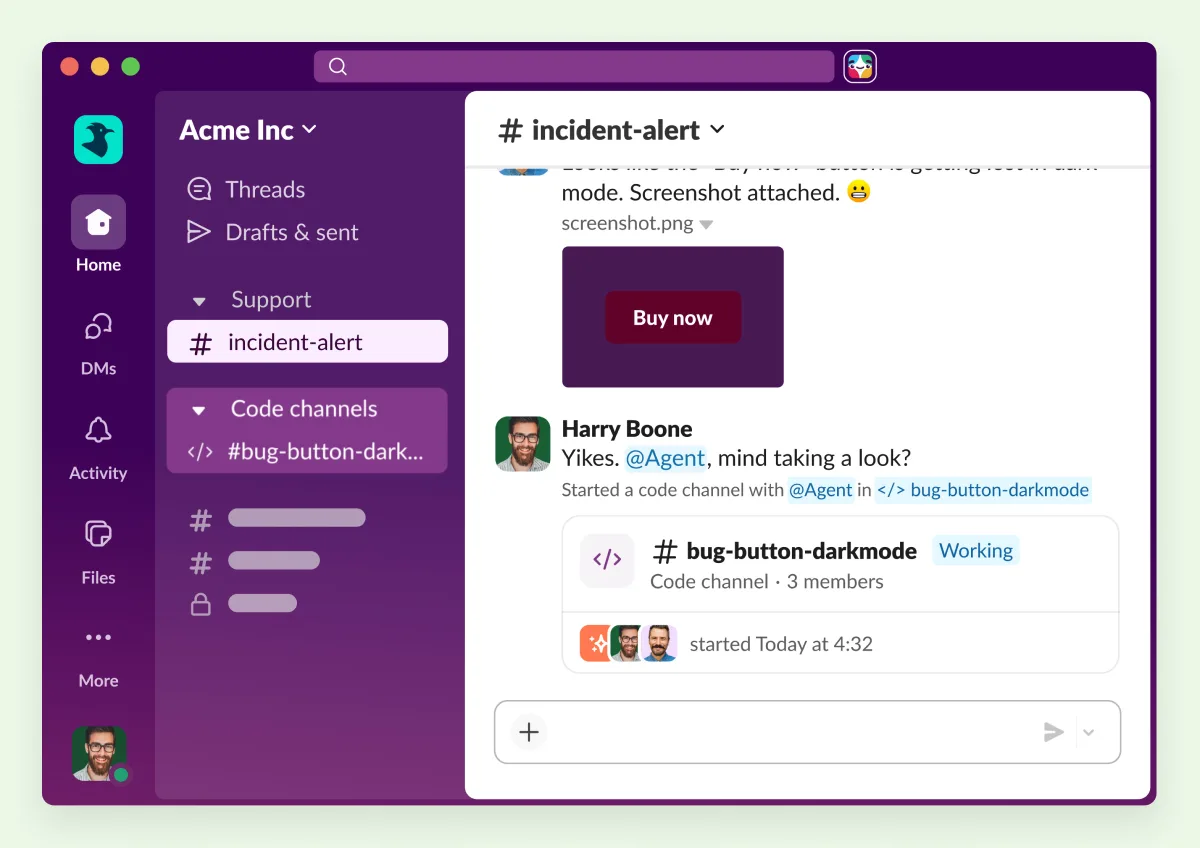
Both belong to the engineering side, but the Lists item matters outside it. A List is where many teams keep exceptions and handoffs, so an agent that can write to one needs a named owner and a human gate on the write, the same rule as any other system of record.
What can wait?
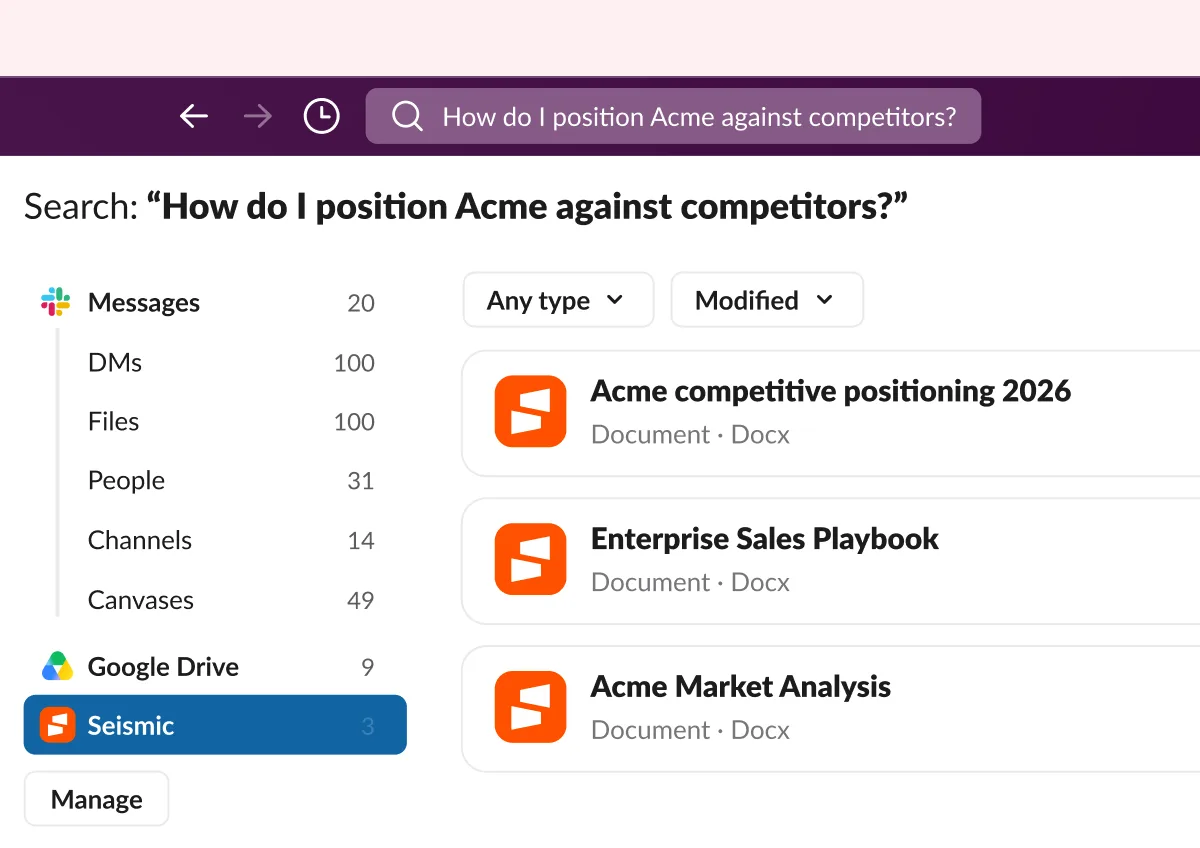
Most of the rest. Slack also lists a Seismic enterprise search source, a comment-only role for canvases, and a sales tracker for teams already on Slack CRM, which Slack says is backfill-only with nothing to set up. They are useful where they fit.
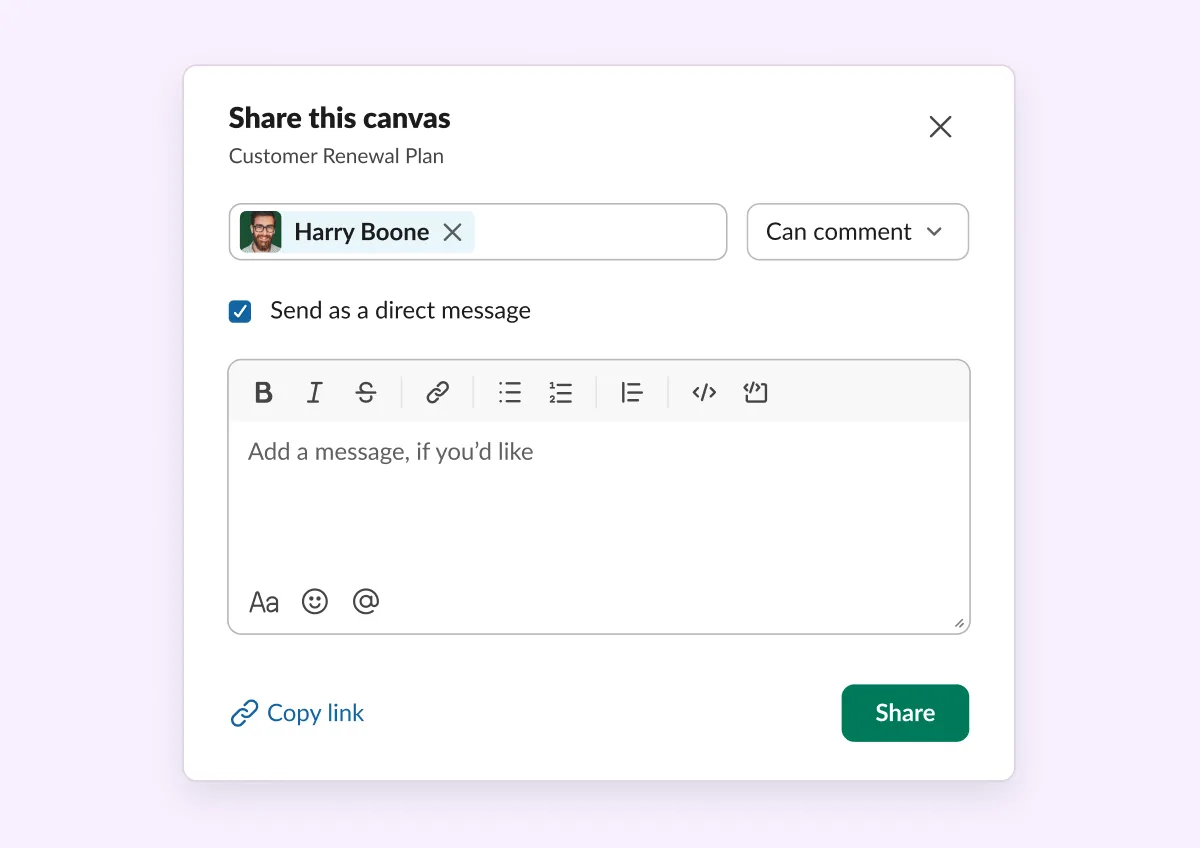
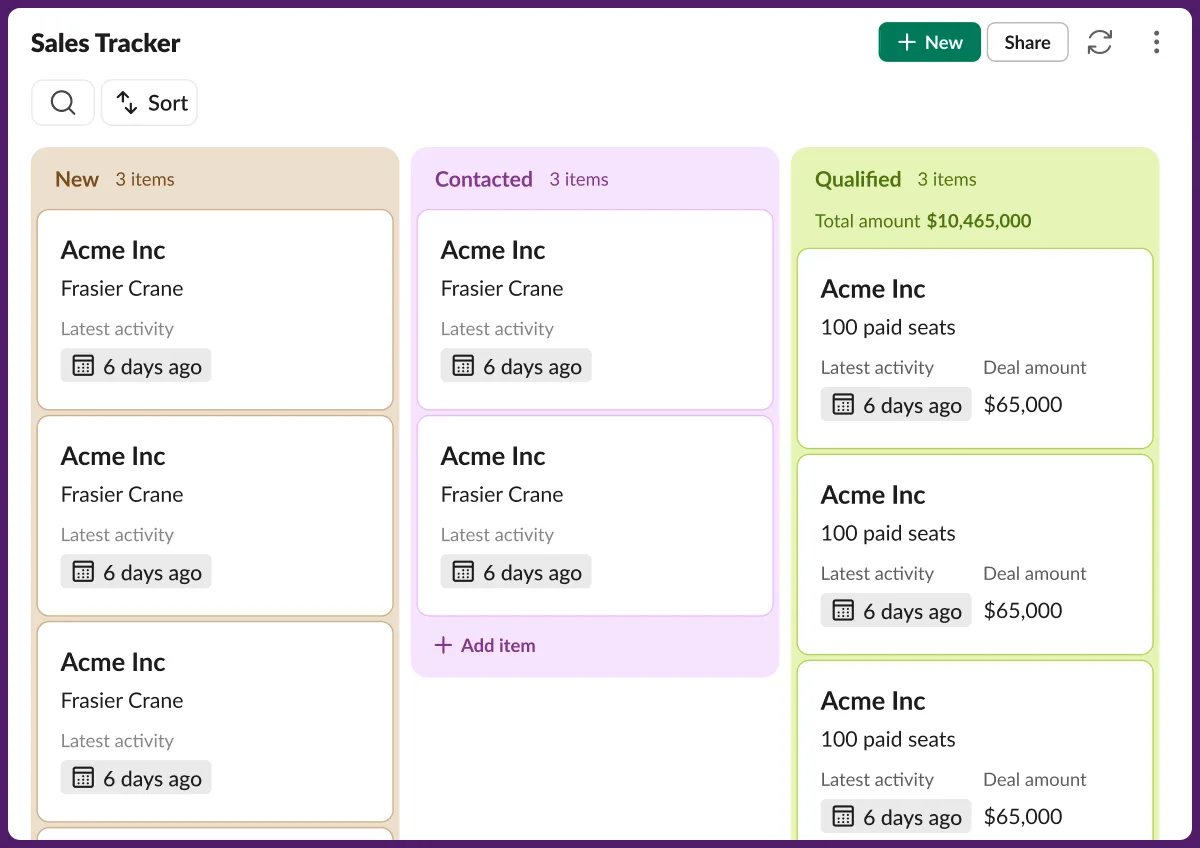
Comment-only canvas access is the one to use early, for a different reason: a reviewer who can comment but not edit is a small approval control for any document that is not in Salesforce.
What do approvals in Slack look like when we run them?
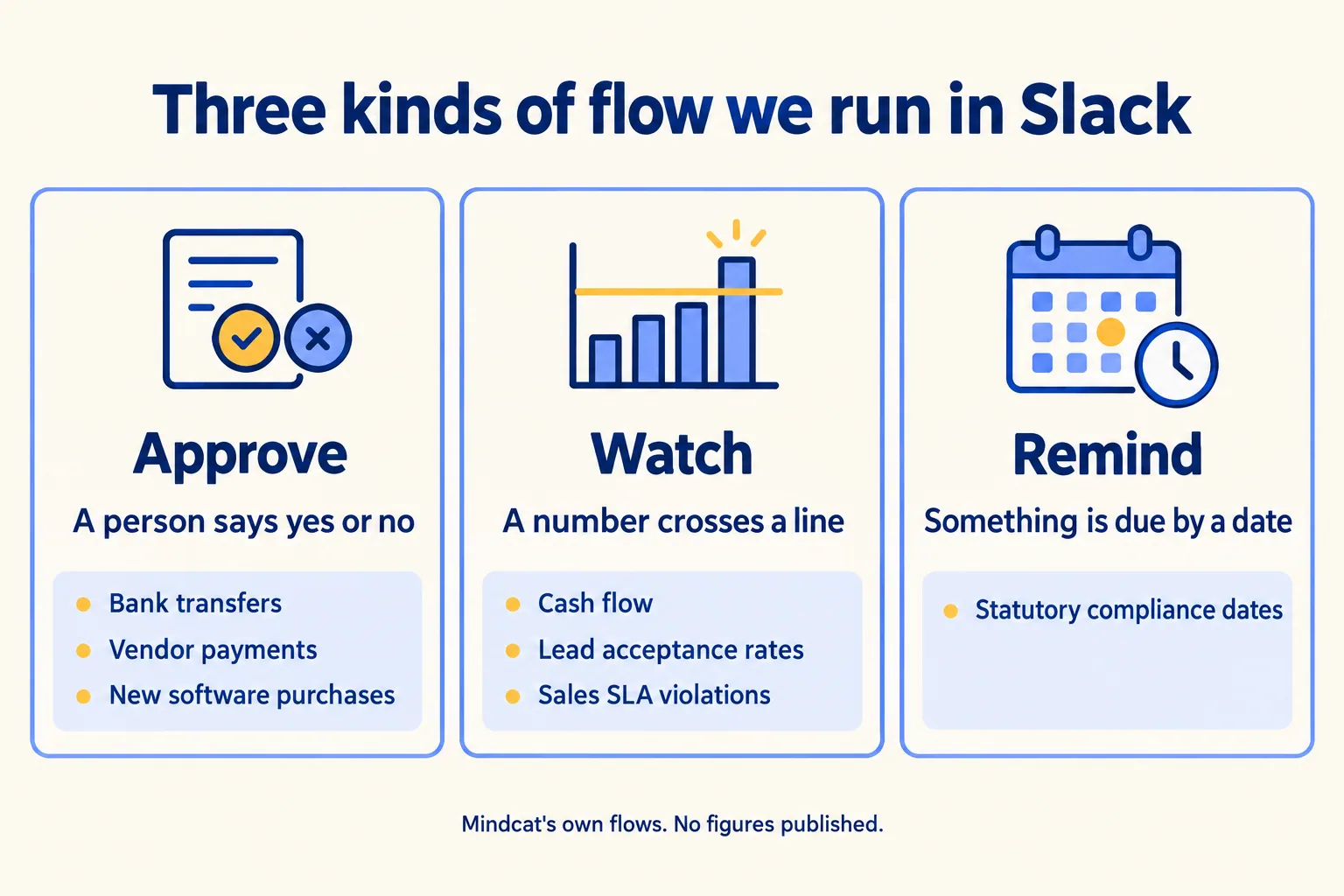
Like a long list of named flows, with a different person at the end of each. At Mindcat, we run these in Slack: expense approvals, bank transfers, vendor payments, intercompany transfers, new software purchases, hiring and new employee onboarding requests, vendor onboarding requests, cash flow management, reminders on statutory compliance dates, lead acceptance rates, and SLA violations on the sales side. Our agents also ask a person to approve before they act. Department heads, individual contributors, external vendors, compliance and finance all take part. That is our own desk, and we set it up for clients the way we use it ourselves.
We sort them into three kinds. That grouping is ours, not Slack's.
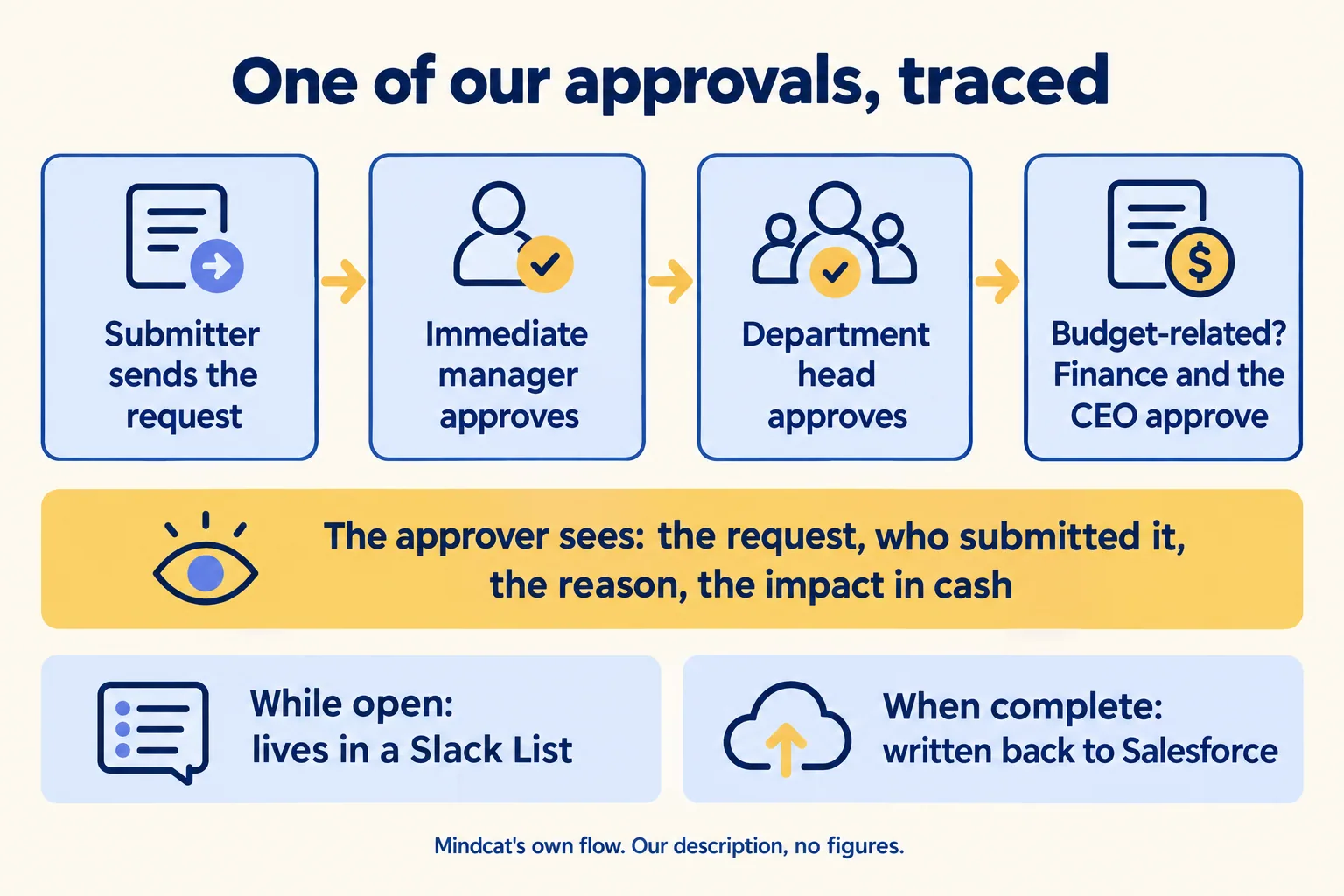
Here is one of them traced, in our own words. Our approvals are multiple steps: the submitter's immediate manager, then the department head, and if the request is budget-related, then finance and the CEO. The approver sees four things: the request, who submitted it, the reason, and the impact in cash. While the approval is open it lives in a Slack List. When it is completely done, it writes back to Salesforce. We have not said here which Slack or Salesforce feature carries ours, so treat it as an example of the process, not as a test of Slack's new approvals feature. A few flows run the other way. For certain hiring requests, the request starts in Salesforce and lives in Salesforce, and only the approvals come back into Slack.
What went wrong is the part worth copying. We had to document and clarify the process, the exceptions and the scenarios before we automated any of it, and we did not do that fully at first. Contractors, external approvals, external reviews and auditing were not in the first version. We built them in after the fact. If you write one page before you build, put those four on it.
Three things follow from the list as a whole, and they are our reading, not a measured result. First, most of the list is not an approval. A team that hears "approvals in Slack" and plans only for the first row misses the second and third, which are the ones that stop a month-end or a filing date. Second, the people take part in different ways. Department heads, individual contributors, external vendors, compliance and finance are all in the list above, so each flow needs to say which of them decides, which only sees it, and which sits outside the company. The fields and the comment rule should be chosen per flow, which is the same split as Classic versus flow-based above. Third, an agent's request for approval is only as good as what the approver can see. We wrote about the failure that happens when it is not: a $20 approval ran as $2,000 in an agent test.
Each of those flows was set up its own way, and the split in time is the useful part. Framing the process took days of discussion: who decides, who only sees it, what the approver needs on the screen, who owns the exception. Building it took us about a day on each, with our AI agents doing the building. That is our own timing on our own flows, not a promise for yours, and a client's flow may take more or less. But it says where the work is. The build is the short part. The framing is the long part, and it is the part no feature from Slack or Salesforce does for you.
We are not sharing other numbers for our own flows here, because we have not published any. If a post like this ever quotes one, it will say where it came from.
What would we do first?
One approval flow, end to end. We are not Slack and we do not resell it, so your contract is with Slack and Salesforce. Our order is below, and it is our judgement, not Slack's.
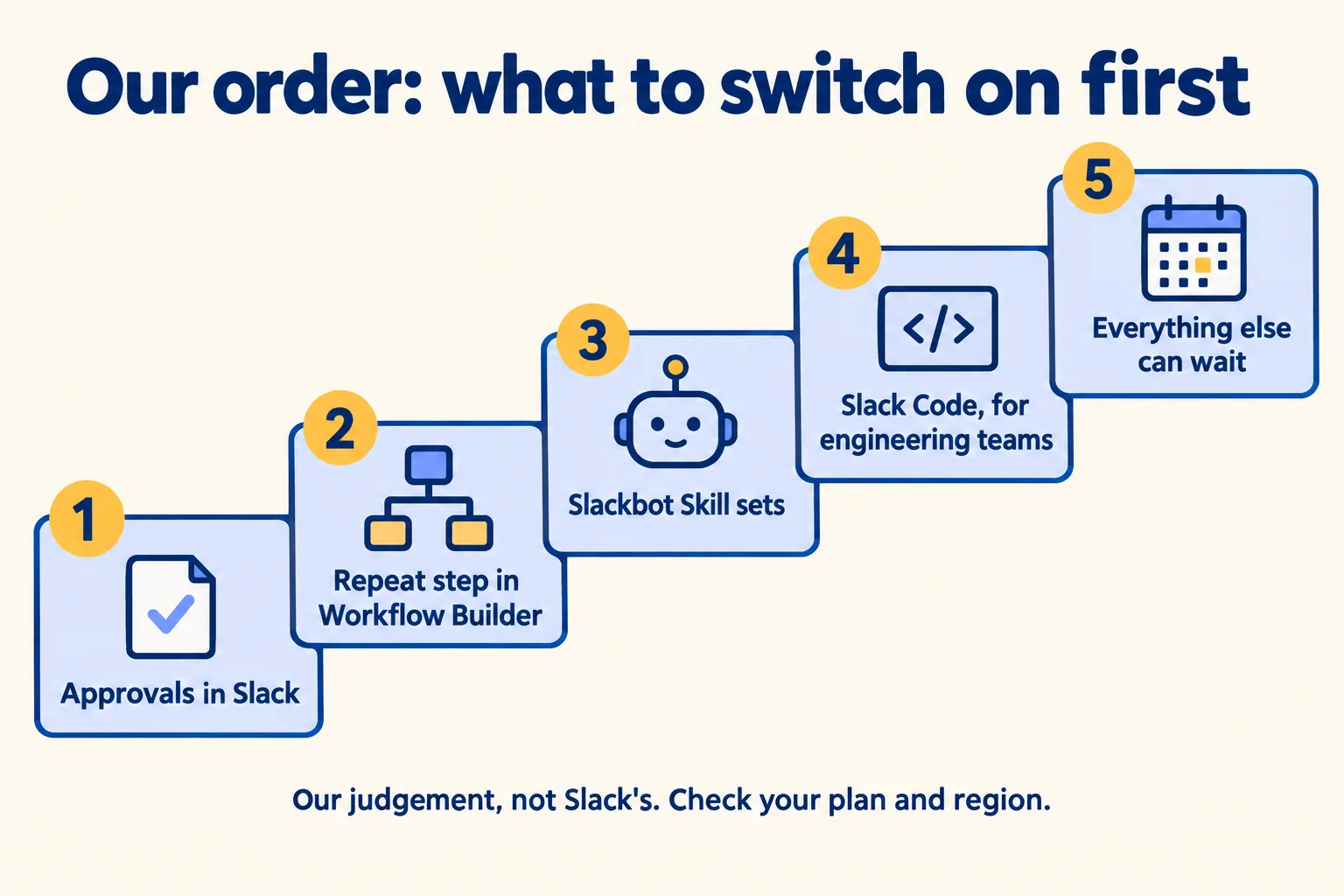
Pick the approval that hurts most, and spend your time on the framing before the build. For a sales lead that is a discount agreed in a personal chat. For an operations lead it is often a vendor or partner sign-off that lives in email. Write four things: the approver, the four fields they see, where the history lives, and who owns the exception. Then switch it on for that one flow. For the support side of the same workspace, see what changes on 27 October.
Next step: use the form at /contact/run-on-slack and tell us, in a few lines, the one approval or handoff that leaks between desks. You hear back within 24 hours from the person who signs the work, and what you get is a written note, not a demo. The note is the framing step, written down, so the build that follows can be short. It is the same note as our Pick your ten: the ten Slack use cases that fit your work, what to build first and what to leave alone.

Related reading: Run the Work in Slack, Slack security, and Slack or Microsoft Teams.
