

If you are choosing a Slack plan and could not say today who can stop the AI in it, or who can see what happened, this is for you. The short answer is to pick the plan by the one control you cannot do without, not by seat count or the length of the AI list. It covers Slack's plans for the person who signs off: an IT lead, a CIO or a compliance owner at a growing team. If you run Teams and it works, or nobody has asked for AI in Slack yet, skip to the last section.
Which control decides the plan?
The one your own policy already requires. Slack's plan table is long, and most of the rows are shared by every paid plan. A handful are not, and those handful are the decision.
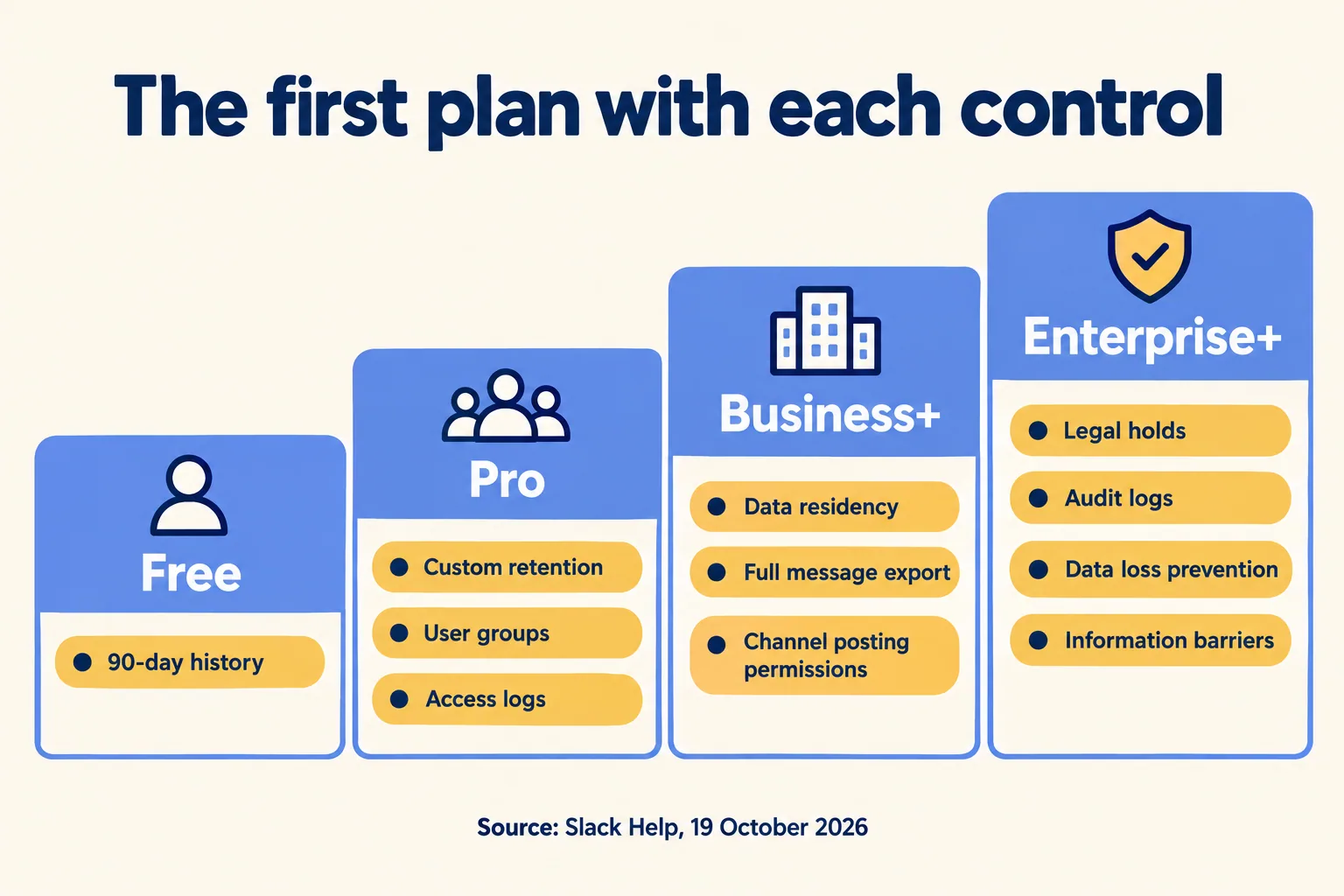
Here is the test we use. Write down the controls your IT or compliance lead would refuse to give up. Usually it is a few of these: how long messages are kept, where the data sits, whether you can export everything, who can post in a channel, who gets the AI, and whether you can place a legal hold. Then read the table row by row and note the first plan that carries each one. The highest of those plans is your plan.
What does each plan add to the controls?
We read Slack's plans and features page on 19 October 2026. These are the rows where the answer changes between plans. Plans change, so read the page again on the day you decide.
Two things stand out. First, the jump from Pro to Business+ is mostly about where the data sits and who can get it all out. Second, the jump to Enterprise+ is about proof: audit logs, holds and barriers are what you show a reviewer after something went wrong.
Take the proof row first. Slack's plan table lists access logs from Pro, but audit logs are Enterprise+ only. We did not find on Slack's pages what access logs record, so do not assume they answer "who acted". Slack's audit log help says that when Slackbot acts for a user, the entry shows "acting_agent: Slackbot" (we read that page on 14 October 2026 for our Slackbot admin post). So if "who acted, and can we stop it?" is your approval question, the answer to the first half starts at Enterprise+. On Pro and Business+ you can switch the AI off for everyone, and that is the only stop Slack's pages describe. We did not find on them how fast a change takes effect, so ask Slack in writing.
Write the clause from your own policy next to each control. A US team might cite a SOC 2 criterion or the NIST AI Risk Management Framework. A UAE team might cite the UAE PDPL (Federal Decree-Law No. 45 of 2021) or a client contract. We do not map Slack's rows to a clause for you, and Slack's table does not either.
If your policy says "keep messages for two years, then delete", Pro already has the row. Paying for a higher plan to get that one is the wrong reason. If your policy says "we must be able to place a legal hold", Business+ will not do, however many seats you buy.
Does switching off the AI lower the plan?
Slack's page on plan changes answers the question directly: "the price you pay for your Slack plan won't change if you turn all AI features off." The same page says the AI features can be managed or turned off by owners and admins.
So a team that "does not want AI" cannot choose a cheaper plan by switching it off. It also means AI is rarely the best reason to move up a plan. It is the best reason to check what the admin can switch, because that depends on the level.
On Pro and Business+, per Slack's help page, an admin chooses Everyone or No one for each AI feature. On Enterprise Grid and Enterprise+, the choices include only specific people and groups, or everyone except specific people and groups. That is a real difference if you want Slackbot for one desk and not for another. On Business+, you cannot do it.
We cover which channels the AI can read in a separate post, Asked to switch on AI in Slack?. Here the point is narrower: the plan decides how finely you can say no.
Is Slackbot on a plan the same as Slackbot for everyone?
No. A feature list says "included". The limits page says how much.
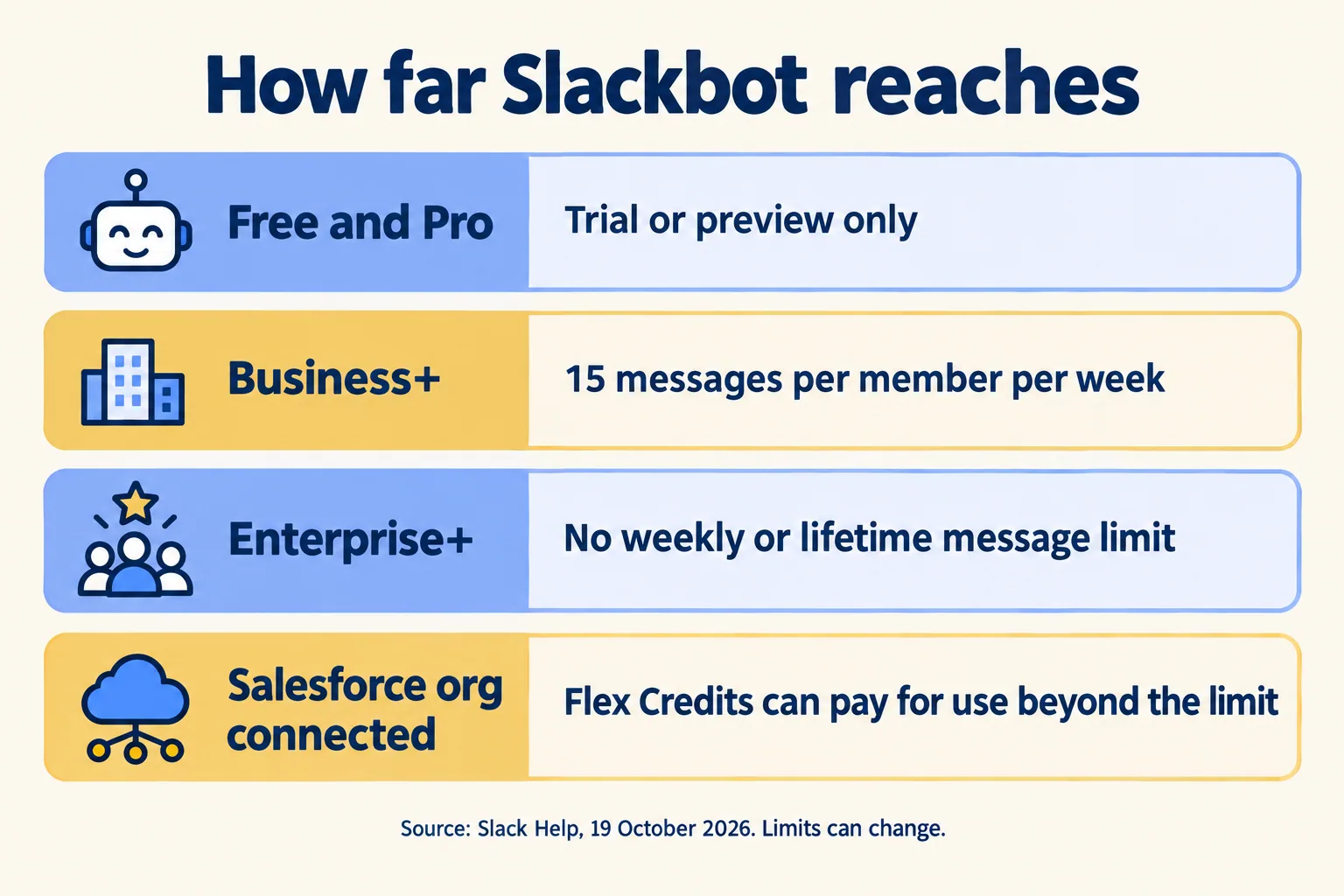
Per Slack's Slackbot limits page, read on 19 October 2026:
- Free and Pro: Slackbot is a trial or preview by default. When the preview messages run out, use stops unless you upgrade or enable Flex Credits.
- Business+: each member can send 15 messages to Slackbot per week, resetting at 12 a.m. Monday in your time zone.
- Enterprise+: members are not subject to weekly or lifetime message limits.
- With a Salesforce org connected: Flex Credits can pay for use beyond the plan limit, charged at the Flex Credits Rate Card. We did not find a cap on that spend on Slack's page, so ask your Salesforce account team whether one can be set.
Slack also says it may move advanced Slackbot capabilities released after June 2026 to other commercial models, and that it will give written notice 30 days before usage-based pricing starts. So treat every limit above as dated. If a vendor deck says "Slackbot included", ask what the limit is this month, in writing.
How do you pick in four steps?
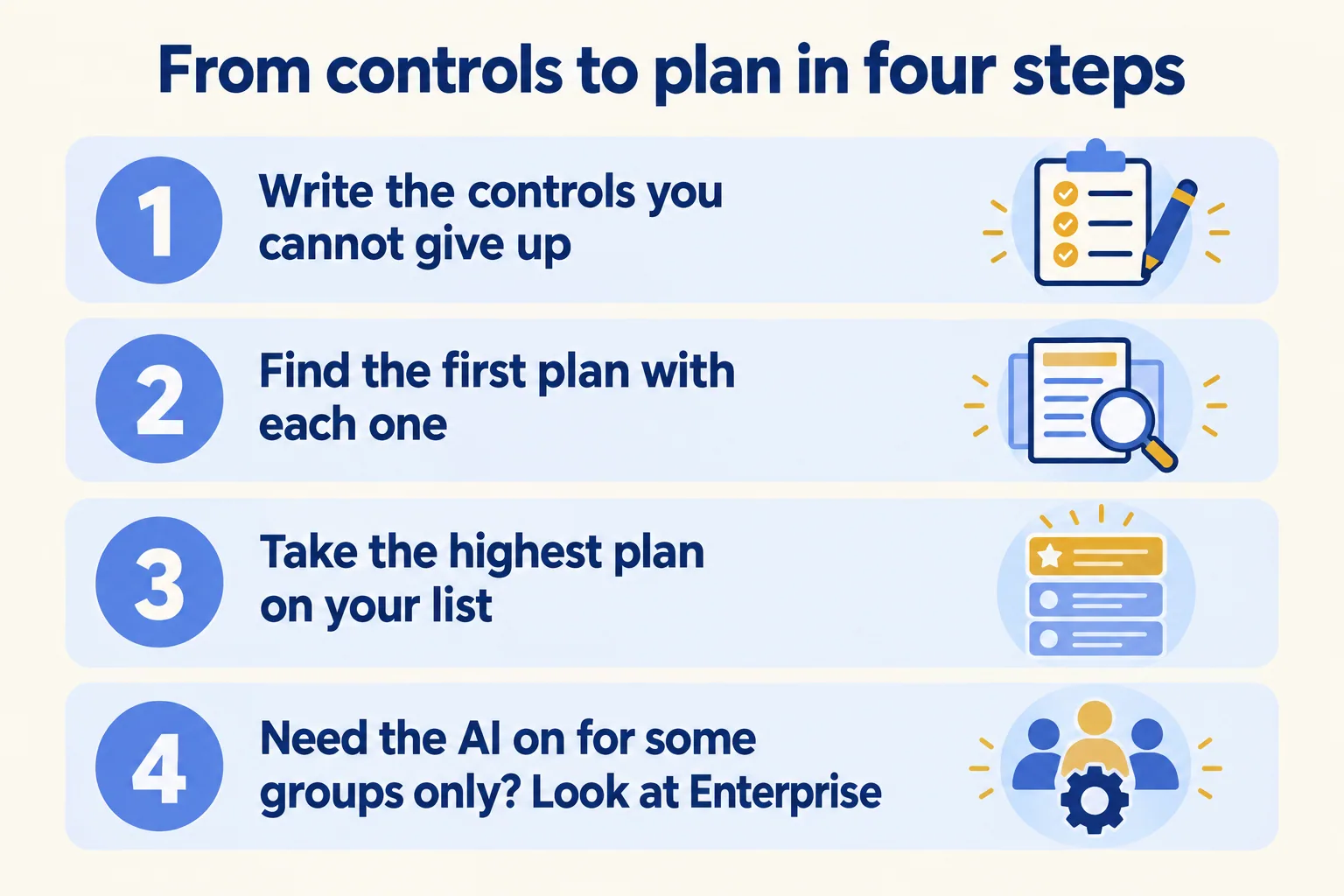
With these four, in this order. It is our rule of thumb, not Slack's.
- 01Write the controls your IT, legal or compliance lead would refuse to give up. Keep it to five lines, one control each.
- 02Find the first plan that carries each one in Slack's plans and features table. Note the date you read it.
- 03Take the highest plan on that list. If it is Pro, stop: do not buy up for features you did not list.
- 04For the AI, ask one question: do you need to switch it on for some groups and off for others? If yes, that alone points to Enterprise Grid or Enterprise+.
Do the same for sourcing. Licences come from Salesforce today, so the plan, the seat count and the renewal date are worth settling with your Salesforce account team. Ask them for data residency in writing for the plan you chose. Whether a region is available on a given plan is confirmed per plan before you sign.
Who is this not for?
Teams under a dozen people with no outside partners, and teams where nobody has asked for AI in Slack and no agent touches a real system yet. For them the question is not the plan. Start with the work you want to run in Slack, and pick the plan after. If your problem is approvals chased across WhatsApp, email and Excel, start with handoffs that leave the channel.
At Mindcat, we write the controls down first, check each against Slack's table on the day, and then name the plan. That is the first page of the written note that comes from our "Pick your ten" method. If you want a second read on yours, tell us the process that leaks. If you run Teams and it works, keep it. We do not move you for the sake of it.
