
If someone has asked you to switch on AI in Slack and you could not say today which channels it will read, or who can turn it off again, this is for you. The short answer is that it reads what each person can already read, so the real decision is about membership, not the model. This is a settings post for whoever owns the Slack admin role. It is not for you if no one has asked for AI in Slack yet, or if your problem is approvals chased across WhatsApp and email. For that, start with handoffs that leave the channel.
What can the AI read once it is on?
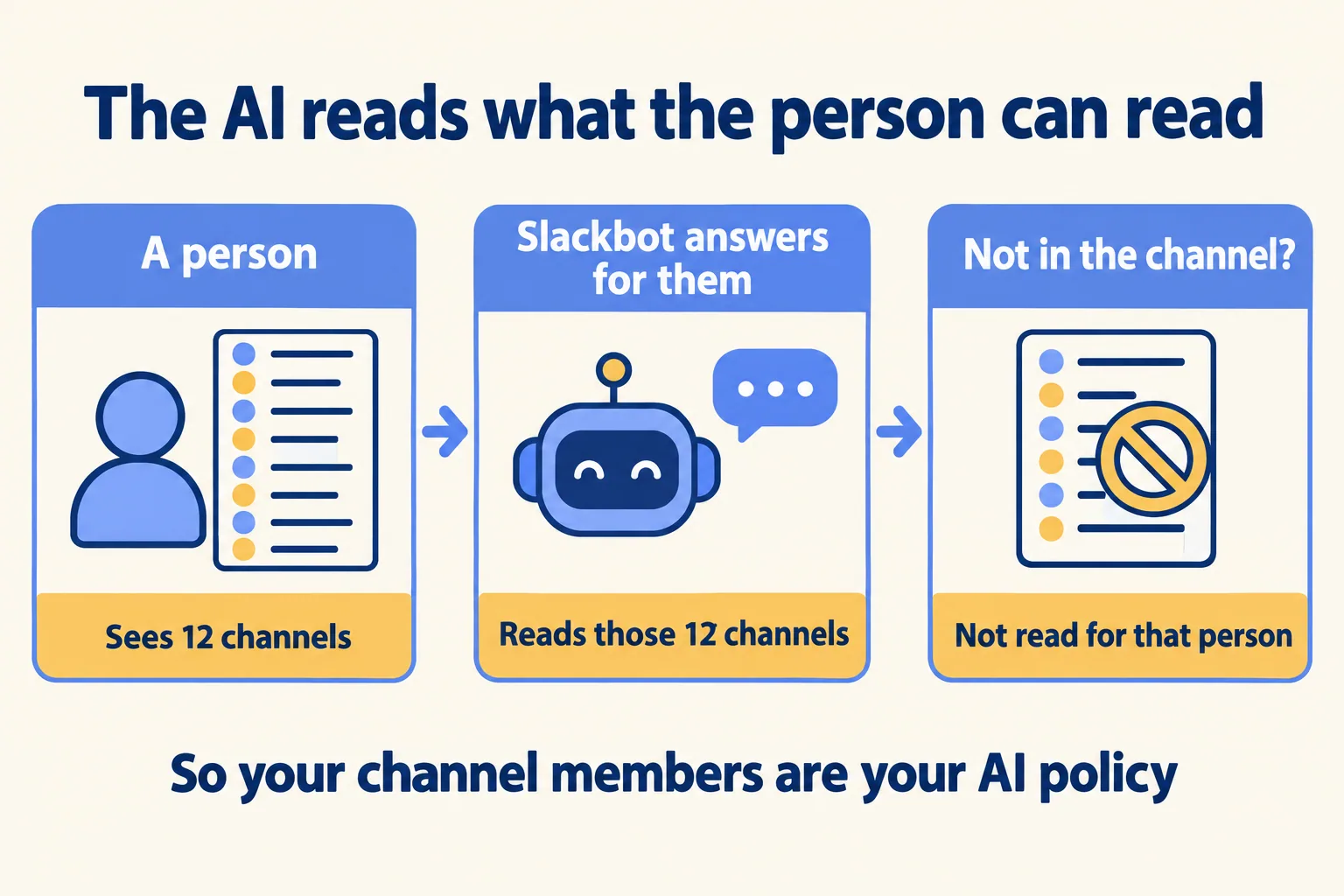
What the person asking can already see. Slack's January 2026 feature drop says its AI "only works with information a user already has permission to access, and those permissions are always enforced." That is Slack's statement, and it is a good one. Our reading of it is narrower: your channel membership is now your AI access policy.
That matters more than any toggle. A consultancy, Brysa, wrote on 15 July 2026 that in many rollouts "the plan was upgraded, the toggle was flipped, and nobody asked what the agent would be reading." If the HR channel has forty members and ten of them should not be there, the AI inherits that mistake, just as search does.
Which setting does your plan give you?
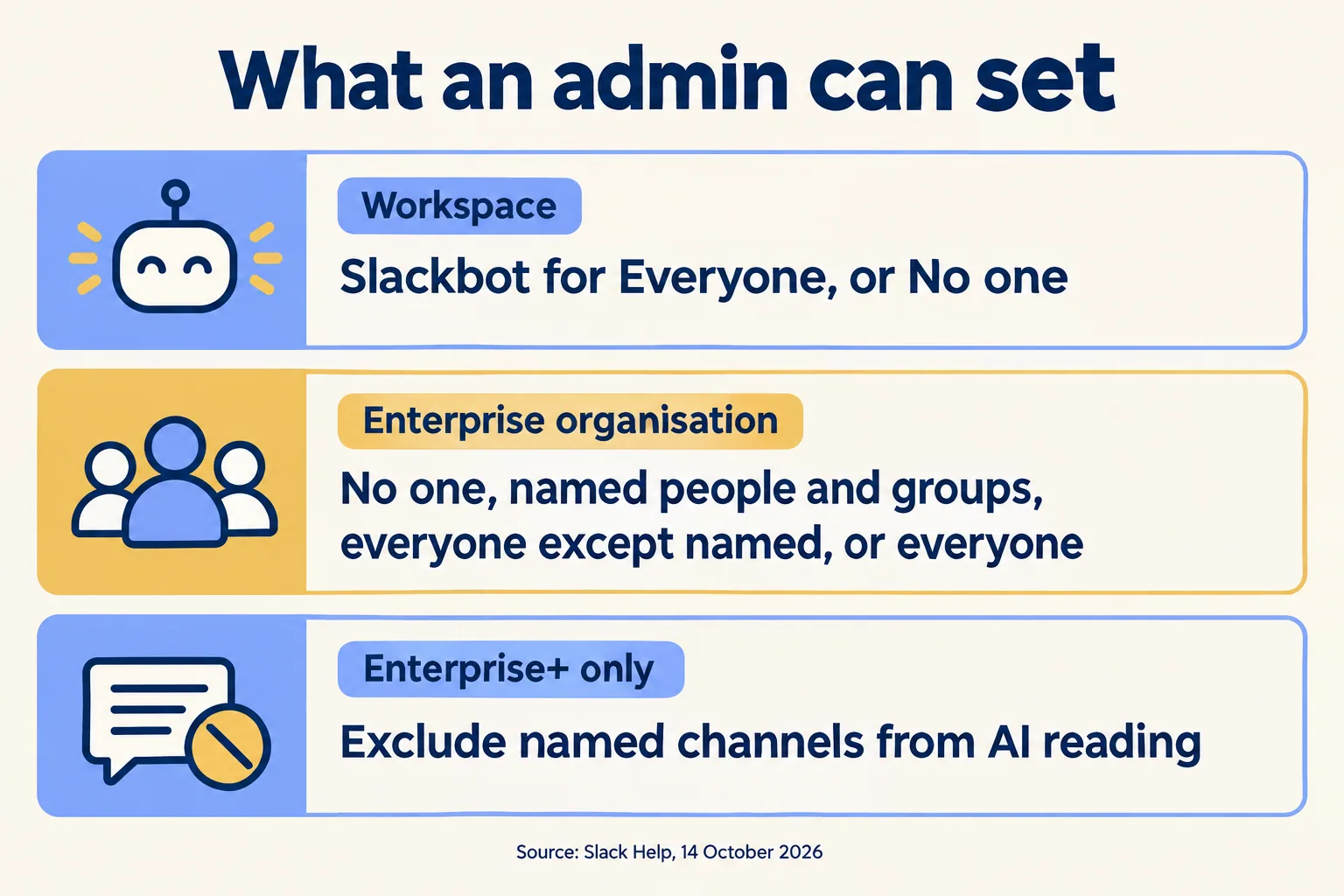
It depends on the plan, and that is the part the pages that rank for this term skip. We read these Slack help pages on 14 October 2026. Plans change, so read them again before you decide.
Slack lists Slackbot for Business+ and Enterprise+. Its page adds that Slackbot may be available to preview in a limited way on free and Pro workspaces. A pilot with a named group is therefore an Enterprise option. On smaller plans you cannot promise it.
What does a channel exclusion not do?
It does not stop writing. Slack's help is plain on this: the setting "only restricts AI read access to channels and content." Members can still use Slackbot to send messages to a restricted channel or add content to its canvases and lists.
So an excluded finance channel is closed to the AI as a reader. It is not closed to a person who asks Slackbot to post there for them. Decide whether that is acceptable for each channel you exclude. If Slack is connected to a Salesforce org, writing to records has its own setting there; our October admin update post covers what Slackbot may write and how to stop it.
How do you decide in one afternoon?
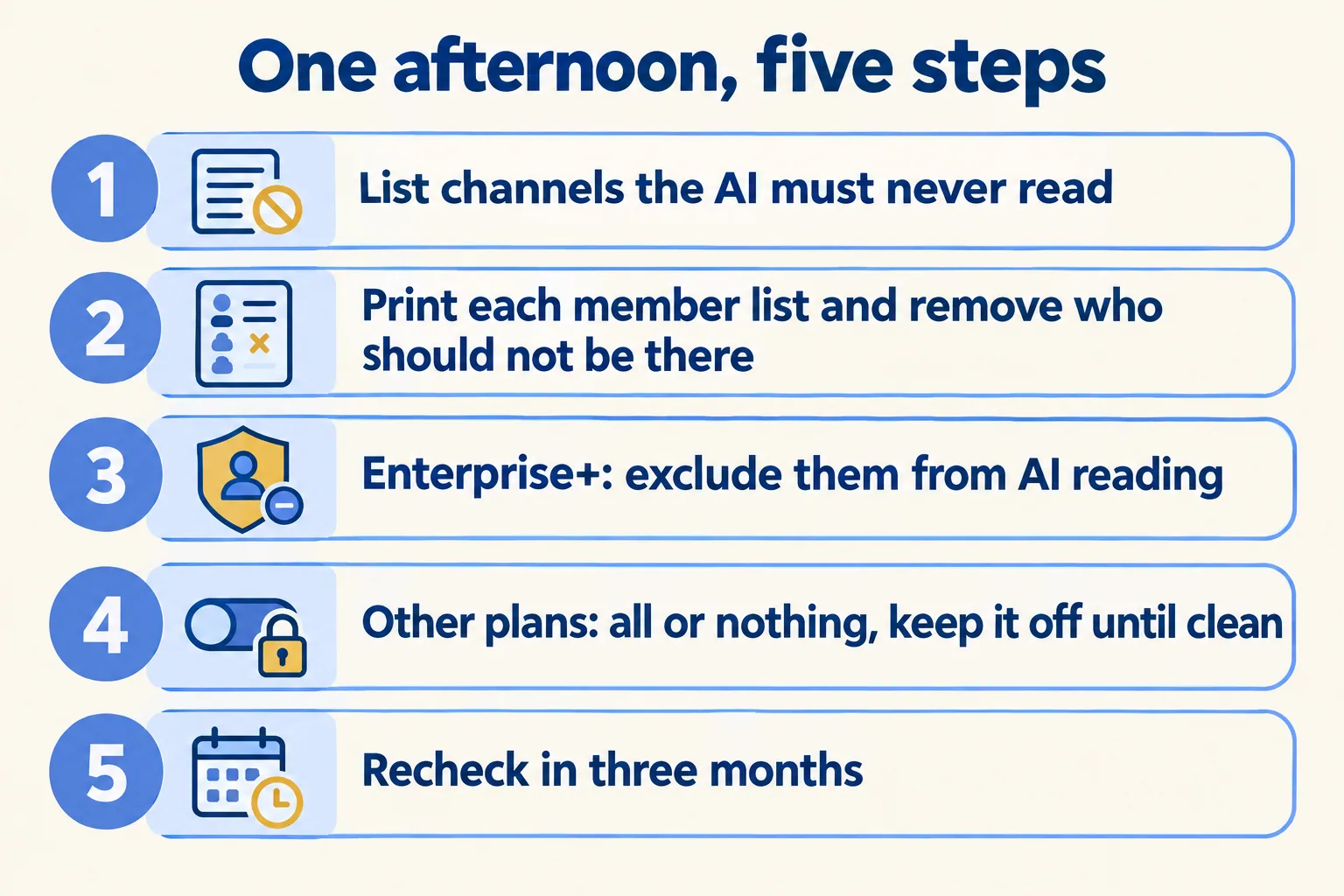
With five steps, in this order. It is our rule of thumb, not Slack's.
- 01List the channels the AI must never read: HR, legal, deals, board, security incidents. Five to ten is typical.
- 02For each, print the member list and remove everyone who has no reason to be there. This is the real control.
- 03Enterprise+? Exclude those channels from AI reading, and note which still allow Slackbot to post.
- 04Business+ or smaller? You can only choose all or nothing. If a sensitive channel still has the wrong members, keep Slackbot off until you have cleaned it.
- 05Pilot with a named group if your plan allows it. Put a recheck date in the calendar, three months out.
If you cannot finish step two for a channel, you have your answer for that channel. Do not rely on an AI setting to hide what a person should not see anyway.
What changes after you switch it on?
More than the day you decided. Slack's help says the "always allow access to new AI features" setting does not apply to future Slackbot releases. If Slackbot is enabled, "new functionality will be released automatically," although some functions have their own admin setting. Your afternoon of work covers today's Slackbot, not next quarter's.
So the recheck date is part of the decision. On that date, read Slack's release notes for Slackbot, check the admin settings page for anything new, and look again at who is in the sensitive channels. People join channels all the time.
What does the log show?
On an Enterprise organisation, some of it. Slack's audit log help (read 14 October 2026) says that when Slackbot acts for a user, such as creating or editing a canvas, "you'll see acting_agent: Slackbot" in the detailed entry, and the same value appears in the Audit Logs API. Owners and members with the audit logs admin role can read it, filter it by date, user or event, and export it as CSV or JSON. Slack lists audit logs as available on Enterprise subscriptions.
Three things we did not find on the Slack pages above, so ask Slack in writing before you sign off: whether prompts and the sources Slackbot read are logged, how it treats channels you share with vendors through Slack Connect, and what happens to your data for training and retention. Slack's trust and security pages cover some of this. We did not rely on them here.
Who stops it, and how?
Name the person before you switch it on. Per Slack's help, workspace or org owners and admins manage the Slackbot setting, and setting it to No one stops its use. Keep that role apart from the person who asked for the AI. We could not find on Slack's pages how fast a change takes effect, so ask your Slack contact for that in writing.
At Mindcat, we write the channel list and its members down first, then the setting, then the name of the person who can switch it off. If you would like a second read on yours, tell us the process that leaks and we start from the work, not the plan. If you run Teams, keep it. We do not move you for the sake of it.
